Sharing a Repository with Others
Learning Objectives
Clone a remote repository.
Collaborate pushing to a common repository.
For the next step, get into pairs. One person will be the “Owner” and the other will be the “Collaborator”. The goal is that the Collaborator add changes into the Owner’s repository. We will switch roles at the end, so both persons will play Owner and Collaborator.
Practising By Yourself
If you’re working through this lesson on your own, you can carry on by opening a second terminal window. This window will represent your partner, working on another computer. You won’t need to give anyone access on GitLab, because both ‘partners’ are you.
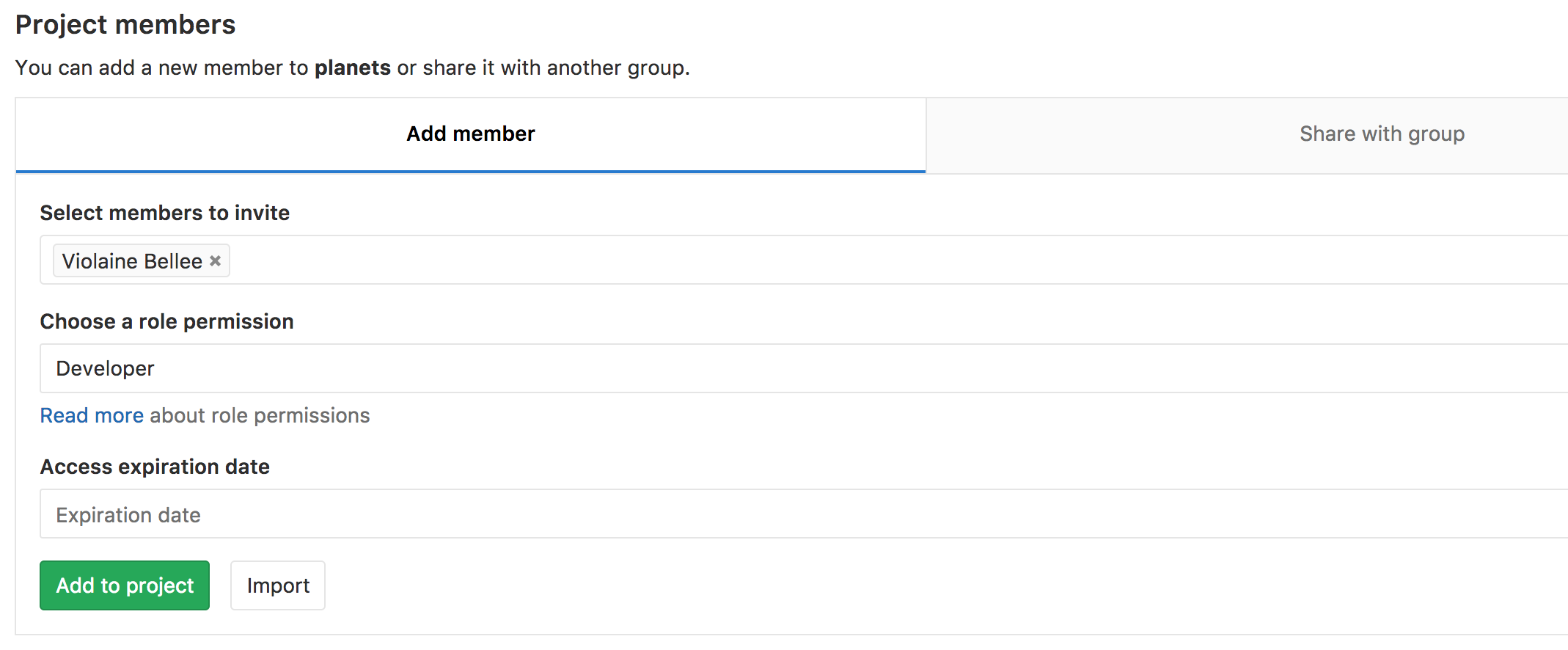
The Owner needs to give the Collaborator access. On GitLab, select
Manage > Members in the menu on the left, click Invite members, and enter
your partner’s username. Choose the Maintainer role: GitLab protects the
main branch by default, and only Maintainers can push to it directly, which
is what we will do in this lesson.
Understanding GitLab permissions
GitLab permission levels might be complicated to understand. This table might come in handy.
Next, the Collaborator needs to download a copy of the Owner’s repository to
their machine. This is called “cloning a repo”. To clone the Owner’s repo into
their Desktop folder, the Collaborator enters:
$ git clone ssh://git@gitlab.cern.ch:7999/vlad/planets.git ~/Desktop/vlad-planets
Replace vlad with the Owner’s username.
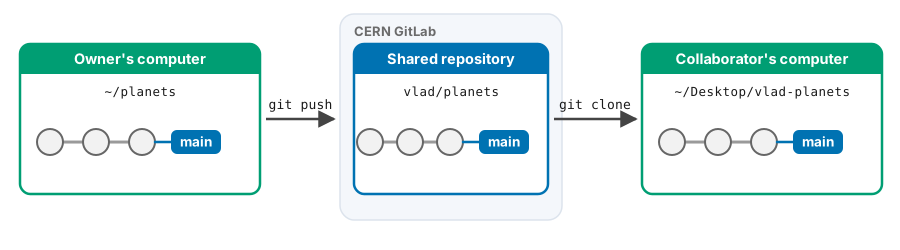
The Collaborator can now make a change in their clone of the Owner’s repository, exactly the same way as we’ve been doing before:
$ cd ~/Desktop/vlad-planets
$ nano pluto.txt
$ cat pluto.txt
It is so a planet!
$ git add pluto.txt
$ git commit -m "Add notes about Pluto"
[main 8c5b3de] Add notes about Pluto
 1 file changed, 1 insertion(+)
 create mode 100644 pluto.txt
Then push the change to the Owner’s repository on GitLab:
$ git push origin main
Enumerating objects: 4, done.
Counting objects: 100% (4/4), done.
Delta compression using up to 4 threads
Compressing objects: 100% (2/2), done.
Writing objects: 100% (3/3), 306 bytes | 306.00 KiB/s, done.
Total 3 (delta 0), reused 0 (delta 0), pack-reused 0
To ssh://gitlab.cern.ch:7999/vlad/planets.git
   9272da5..29aba7c  main -> main
Note that we didn’t have to create a remote called origin: Git uses this name
by default when we clone a repository. (This is why origin was a sensible
choice earlier when we were setting up remotes by hand.)
Take a look to the Owner’s repository on its GitLab website now (maybe you need to refresh your browser.) You should be able to see the new commit made by the Collaborator.
To download the Collaborator’s changes from GitLab, the Owner now enters:
$ git pull origin main
remote: Enumerating objects: 4, done.
remote: Counting objects: 100% (4/4), done.
remote: Compressing objects: 100% (2/2), done.
remote: Total 3 (delta 0), reused 0 (delta 0), pack-reused 0
Unpacking objects: 100% (3/3), 306 bytes | 306.00 KiB/s, done.
From ssh://gitlab.cern.ch:7999/vlad/planets
 * branch            main       -> FETCH_HEAD
   9272da5..29aba7c  main       -> origin/main
Updating 9272da5..29aba7c
Fast-forward
 pluto.txt | 1 +
 1 file changed, 1 insertion(+)
 create mode 100644 pluto.txt
Now the three repositories (Owner’s local, Collaborator’s local, and Owner’s on GitLab) are back in sync.
A Basic Collaborative Workflow
In practice, it is good to be sure that you have an updated version of the
repository you are collaborating on, so you should git pull before making
your changes. The basic collaborative workflow would be:
update your local repo with
git pull origin main,make your changes and stage them with
git add,commit your changes with
git commit -m, andupload the changes to GitLab with
git push origin main
It is better to make many commits with smaller changes rather than one commit with massive changes: small commits are easier to read and review.
Switch Roles and Repeat
Switch roles and repeat the whole process.
Review Changes
The Owner pushes commits to the repository without giving any information to the Collaborator. How can the Collaborator find out what has changed with command line? And on GitLab?
Solution
On the command line, the Collaborator can use git fetch origin
to download the remote changes into the local repository, but without merging
them into their own work. Then git log main..origin/main lists the new
commits, and git diff main origin/main shows the changes themselves.
On GitLab, the Collaborator can open the project’s list of commits (in the Code menu on the left, select Commits) and click on any commit to see its changes. To see everything that differs between two points in history, the Code > Compare revisions page lets you pick two commits or branches and shows all the commits and changes between them.
Comment Changes in GitLab
The Collaborator has some questions about one line change made by the Owner and has some suggestions to propose.
With GitLab, it is possible to comment on the changes made in a commit: open the commit, and hover over the line you want to comment on; a comment icon appears next to it that opens a comment window.
The Collaborator posts their comments and suggestions using the GitLab interface.
Version History, Backup, and Version Control
Some backup software can keep a history of the versions of your files, and also allows you to recover specific versions. How is this functionality different from version control? What are some of the benefits of using version control, Git and GitLab?
Solution
There is no single right answer, but some of the main differences are:
Backups save versions automatically, at fixed times. With version control, you decide when a version is worth recording, and each commit comes with a message explaining what changed and why.
Version control records who made each change, and lets several people work on the same files in parallel and merge their work, rather than overwriting each other’s copies.
You can compare any two versions, work on branches, and undo one specific change without losing the work done since.
With Git, every clone contains the complete history, and a platform such as GitLab adds a place to share it, review each other’s changes and discuss them.
Version control does not replace backups, though: it is best at tracking text files such as code and documents, and is not meant for large data files.
Key Points
git clonecopies a remote repository to create a local repository with a remote calledoriginautomatically set up.
CC BY 4.0 - Based on git-novice © 2016–2017 Software Carpentry Foundation