
Additional tips & tricks#
Learning Objectives
Use
rsyncto copy large/many filesUse tmux to keep your sessions alive and for tiling your terminal
By now you hopefully know all the things necessary to comfortably work with ssh and configure it to your liking. There are a few more things that can make working with ssh even more comfortable so we just collect them here for people interested in this.
rsync for file transfers#
Very often one might want to synchronize a folder from a server with a local
machine. You already downloaded most of it but now you created a few new plots
and running scp -r would copy everything again unless you really specify
just the new files.
There is a program to solve exactly this problem called rsync. By default it
works on folders and will only transmit what is necessary. The most common use
case is
rsync -vaz server:/folder/ localfolder
which will efficiently copy everything in folder on server and put it in
the directory localfolder (beware, it matters whether or not you put a slash
at the end of the target). The most common options are
Option |
Explanation |
|---|---|
|
verbose mode, print file names as they are copied |
|
archive mode, copy everything recursively and preserve file times and permissions |
|
compress data while transmitting it |
|
Only show which files would be copied instead of copying. Useful to check everything works as expected before starting a big copy |
|
exclude the given files from copying, useful for logfiles you might not need |
|
delete everything in |
So to create an exact copy of a directory but excluding the logs subdirectory we could use
rsync -vaz --exclude=logs --delete server:/folder/ localfolder
Editing files over SSH#
There are multiple ways to show files on a system connected to by ssh as if they were local files. For example
there is
sshfswhich lets you connect the files on a remote machine via the command line. Once it’s installed you can just runsshfs [user@]hostname:[directory] mountpoint. There even is a windows version.on Linux when using Gnome in the file browser there is a “+ Other locations” in left pane at the bottom. This should bring up a “Connect to Server” field where you can enter any ssh host in the form
ssh://username@host/folderand gnome will let you see the files on that host. See here for more information but this works similar in other desktop environments.In addition many editors or development environments have their own support to work on a remote machine via ssh. There is a guide on confluence explaining the setup for some of them.
SSH multiplexing#
ssh allows us to have multiple sessions over the same connection: You connect once and all subsequent connections go over the same connection. This can speed up connection times and also reduces password prompts if key based authentication doesn’t work. All we have to do is put the following in the configuration file
 ControlMaster auto
 ControlPath ~/.ssh/%r@%h:%p.control
 ControlPersist 30m
And when connecting ssh will automatically create a control path that can be used by other connections and will keep the connection alive for 30m after we closed the last ssh session.
This also allows to add port forwards to an existing connection: once you are
connected to a server you can run ssh -fNL localport:remotehost:remoteport server locally in a different terminal to add a port forwarding.
If you really want to close the connection to a server you will have to run
ssh -O exit server and ssh will close the channel completely.
sshuttle for advanced forwarding#
There is an additional tool called sshuttle. You can only run it on machines where you have administration privileges but then it allows to use ssh to transparently connect your whole laptop to the network. This is then basically identical to a VPN connection.
Using a terminal multiplexer (e.g. tmux, screen)#
When you lose your ssh connection or your terminal window is closed, all processes that had been running in that terminal are also killed. This can be frustrating if it is a long-running process such compilation or a dataset download.
To avoid this you can use a terminal multiplexer program such as GNU screen or the newer and more feature-rich tmux. Both are pre-installed on KEKCC and NAF.
Note
Hint For computational jobs like processing a steering file, use a batch submission system instead.
These programs create one or multiple new terminal sessions within your terminal, and these sessions run independently of the original terminal, even if it exits. You just have to re-connect and re-attach the old screen or tmux session. A terminal multiplexer allows for example to
Start a process (e.g. a download or compilation) on your work computer, log out (which detaches the session) go home and from your home desktop / notebook re-attach the session and check how your process is doing.
Having multiple interactive shells in parallel on a remote host, without needing to open multiple terminals and connecting from each one separately. Think of it like having multiple remote “tabs”. Tmux can also act as a terminal window manager and arrange them side-by-side. This can be useful e.g. for running a process in one pane and monitoring the processor load via htop
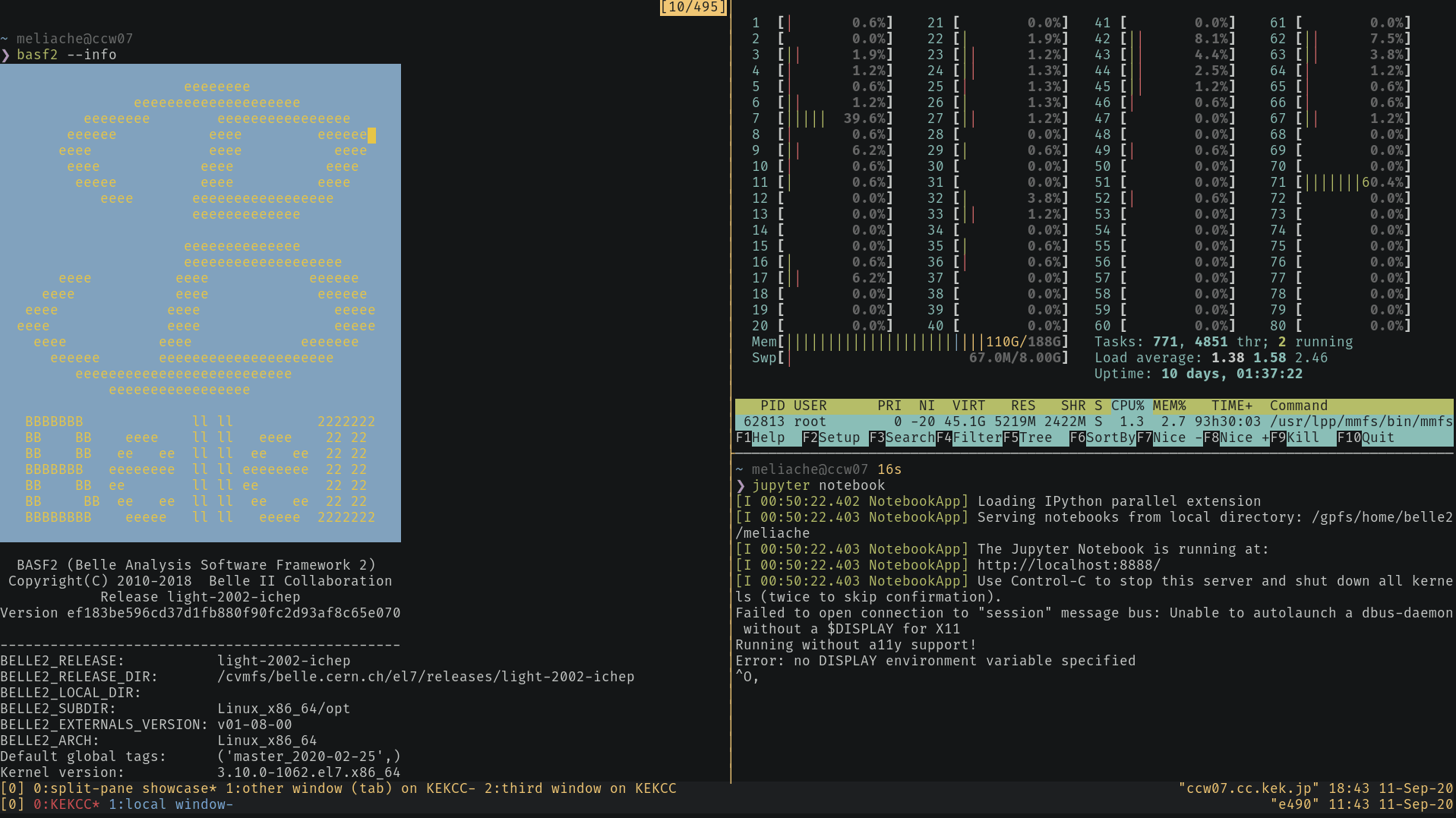
Fig. 2 Tmux running in the local terminal and on KEKCC with multiple windows and panes.#
If you don’t know either programs yet: learn how to use (the newer) tmux. Check out the official getting started guide from its wiki or one of the various googable online guides such as this one. And I also recommend keeping a cheat sheet in your bookmarks. The commands that you need for the most basic use-case are
tmux new-session: Creates and attaches a new tmux session. This is also the default behaviour when just entering thetmux. However, thenew-sessionsubcommand allows for additional options such as naming sessions (seetmux new-session --help).tmux kill-sessionKills the current tmux session. Use this when you finish your work and don’t require your session anymore, it is a polite thing to do on shared resources like login nodes.tmux detachDetaches the current tmux session, so that you return your original terminal session, but the tmux session keeps running in the background. This happens automatically when you lose your connection or your terminal is closed.tmux attach. Short form:tmux a. Attaches a running but detached tmux session. When you log into a cluster like KEKCC or NAF to attach your previous tmux session, make sure are on exactly the same host as the one in which you started the initial tmux session.
All these commands take optional arguments to be able to handle multiple sessions and there are many more useful tmux commands than those listed here, for example if you want to have multiple windows (tmux “tabs”) and panes in a tmux. To see those, check out the documentation links above, where you will also find keyboard shortcuts for most of them.
Key Points
There’s a lot to be discovered!