learners
Setup
This course is compatible with Github and Gitea.
Gitea is meant to be a drop-in replacement for GitHub, this course will only menton Gitea explicitly when this does not hold. Otherwise, you can assume that what works for GitHub will work for Gitea.
The Gitea actions, for example, described later in this course are meant to be compatible with GitHub actions, but there are still some differences between the two. A full comparison can be found here in Gitea’s documentation.
Set up Python
Part of this lesson consists in learning how to make scripts exit correctly. At some point, we will need to test exit codes with Pytest, Python testing tool.
To know whether your Python has pytest, just run python -c "import pytest". If this command returns nothing, it means everything is fine. Otherwise, it can be installed by running python -m pip install -U pytest. More information can be found in the pytest website for installation.
Set up the code
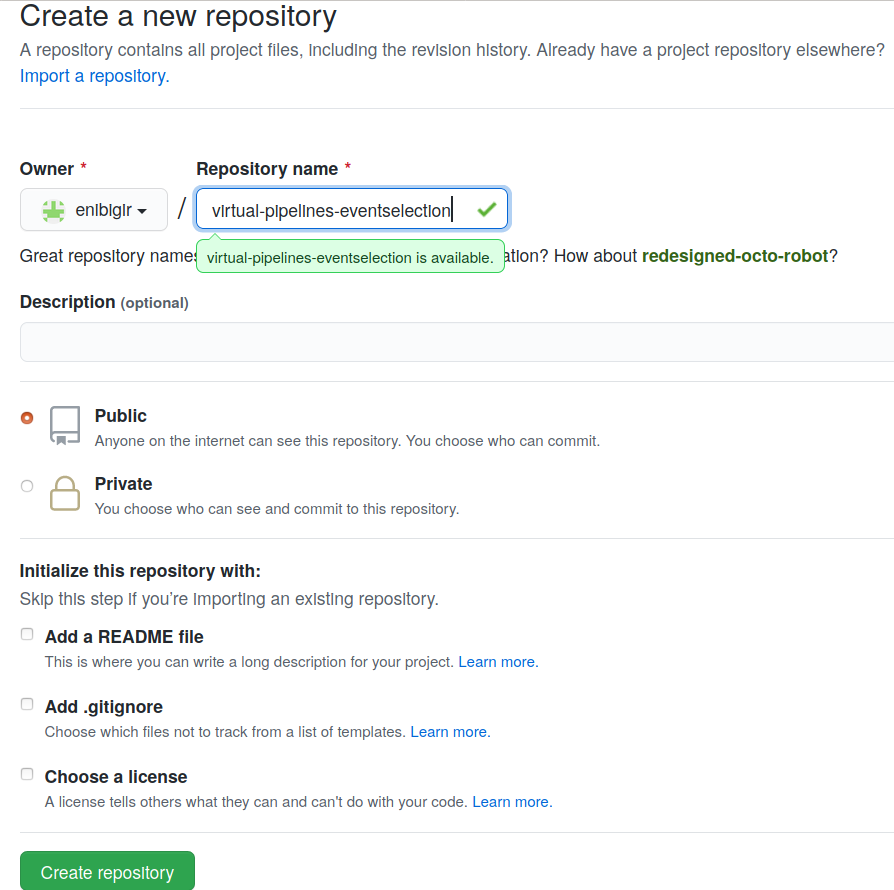
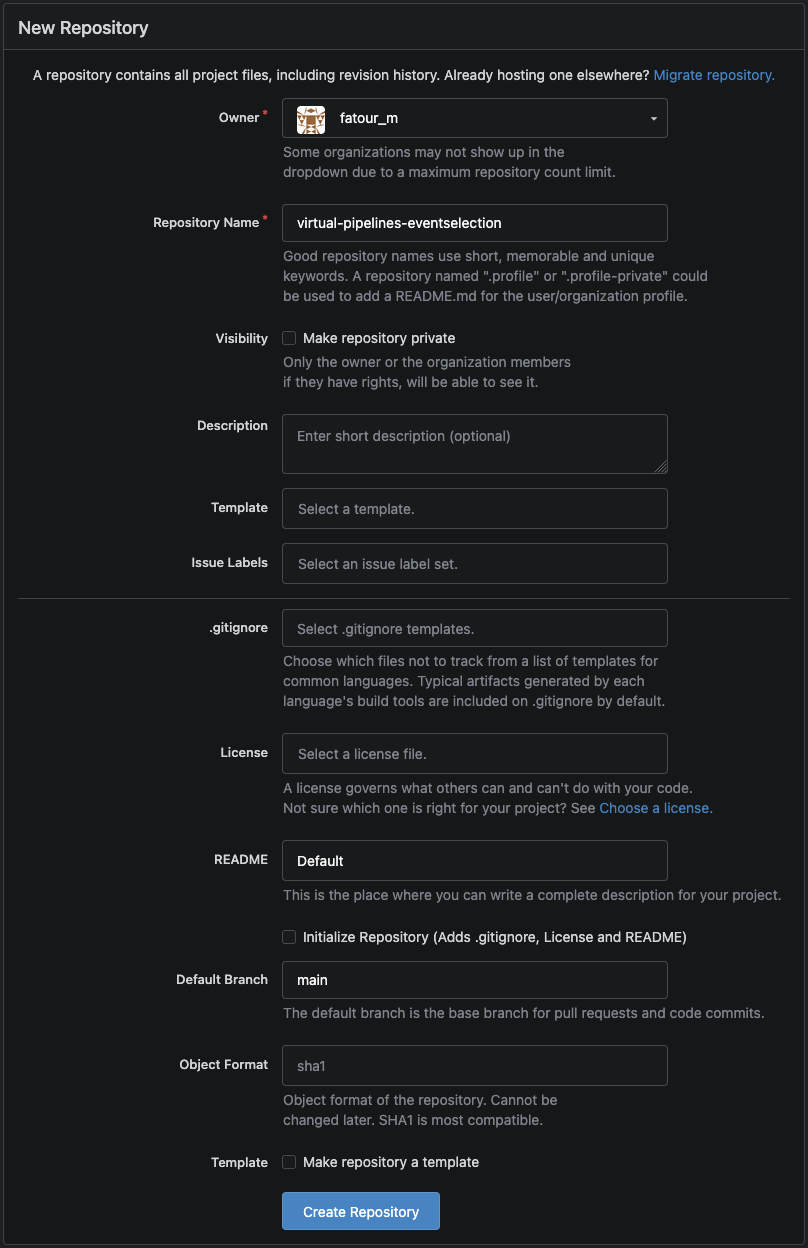
Create a new project on your personal GitHub/Gitea account and name it
virtual-pipelines-eventselection.Make sure you set the visibility level of the new project to public so that everyone can see your awesome work.
Get the code
Open a terminal and clone the repository that contains files required for this lesson.
git clone git@github.com:hsf-training/hsf-training-cms-analysis.git virtual-pipelines-eventselection
cd virtual-pipelines-eventselection
Add the code to your personal GitHub/Gitea account
At the moment, your clone is the remote repository stored on someone GitHub account. To get the name of the existing remote use
git remote -v # -v stands for verboseorigin git@github.com:hsf-training/hsf-training-cms-analysis.git (fetch) origin git@github.com:hsf-training/hsf-training-cms-analysis.git (push)You have to change remote’s URL in order to be able to add the code to your personal GitHub account.
git remote set-url origin git@github.com:<GitHub username>/virtual-pipelines-eventselection.gitCheck again the name of the current remote:
git remote -vThe last step is to rename the branch to main, and push it to GitHub.
git branch -M main
git push -u origin main
This will add the code to your new repository on GitHub. Done!
If you’re having issues, please let us know immediately since you might not be able to follow this lesson without a proper setup.